Written by The Hanapin Marketing Team
In
this guide, we’ll go over the basics of Facebook Ads Manager. After you launch
a few campaigns, you’ll quickly see how much insight into your audience
Facebook provides to optimize your account.
In
this guide, we will cover:
·
Ads Manager Interface
·
Account Organization (Campaigns, Ad Sets, Ads)
·
Campaign Objectives
·
Ad Set Targeting
·
Types of Ads
·
Reporting Overview
Creating
A Facebook Account
If
you don’t already have a Facebook account set up, visit
https://www.facebook.com/business/ while logged into your personal account or
your business’s account. If you’re an agency, you can use Facebook Business
Manager to easily access all clients’ accounts.
The
Interface
Before
creating campaigns and uploading ads, it’s important to first familiarize
yourself with the Facebook Ads Manager interface. At the home screen, there are
5 tabs to navigate.

“Plan”
is where your insights and creative tools live. The Audience Insights tool is
populated with data that Facebook has collected from your site visitors if your
Facebook pixel is placed on your site. You don’t have to start running
campaigns to get these insights; simply place the pixel on your site to start
learning about your audience. The “Plan” section also houses the Creative Hub,
which helps marketing teams collaborate, manage their creative mock-ups, and
view formats.
“Create
& Manage” includes the Ads Manager, which is where you’ll probably spend
the bulk of your time. Here, you can see all campaigns and their performance
using custom columns. The different performance metrics will be explained later
in this guide.
In
“Measure & Report” there are a number of more advanced features including:
·
Ads Reporting
·
Test and Learn
·
Attribution
·
Analytics
·
Events Manager
These
features are great to dive into once you feel that you’ve mastered the basics.
The
“Assets” section simply contains your audiences, images, product catalogs (if
applicable), business locations, and brand safety settings.
In
“Settings” you can access information like your account name, time zone,
business address, etc. This is also where you go to add or change advertiser
and administrator roles for your ad account. Email notification settings can
also be adjusted in this tab. You can choose to receive emails when ads are
approved/disapproved, schedule reports, and receive alerts when your payment
method is charged. This is also where you go if you ever need to deactivate
your Facebook Ads Manager account.
Account
Organization
Campaigns
and Objectives
Just
like in Google Ads, campaigns are the highest segmentation in Facebook. When
creating a new campaign, you are first prompted to select an objective. By
setting an objective, you initially identify and stick with goals. Below are
the campaign objective options. Keep in mind that Facebook automatically
optimizes campaigns in order to show your ads to people most likely to meet the
goals of the campaign objective.

Brand
Awareness
This
campaign optimizes for reach and ad recall. Use this to find the people who are
most likely to be interested in your products or services.
Reach
Reach
campaigns specifically help with local brand awareness, allowing you to
advertise to users who are near your business locations.
Traffic
This
type of campaign is optimized to show your ads to people who are most likely to
click. You set the custom destination URL at the ad level.
Engagement
Expose
a post to a wide audience to increase the number of Likes, comments, shares, or
photo views. This is helpful for increasing your number of Page Likes or
promoting an event.
App
Installs
Ads
with this objective have destination URLs to the app store. Integrate your
business’s app with Facebook SDK for iOS or Android to track how many visitors
complete an install.
Video
Views
With
this campaign objective, you use ads that include an embedded video instead of
just images and text.
Lead
Generation
Get
new prospects into your sales funnel.
Messages
This
objective enables advertisers to buy ads in Ads Manager or the Ads API with the
goal of opening Messenger interactions, thus driving conversations at scale.
Conversions
This
objective is probably the most common for advertisers who start in Google Ads
for PPC and expand to Facebook. In order to effectively utilize this objective,
you must implement the Facebook conversion pixel on the pages you wish to count
as conversions. Visit this guide for more info on conversion
tracking on Facebook.
Catalog
Sales
Connect
your Facebook ads to your product catalog to show people ads for the products
they are most likely to buy.
Store
Traffic
Facebook
will show ads to people in a certain radius of your choosing around your
business. This objective can increase local brand awareness and traffic.
Once
you’ve chosen your campaign objective, there are a few more campaign-level
decisions to make. See the settings below:
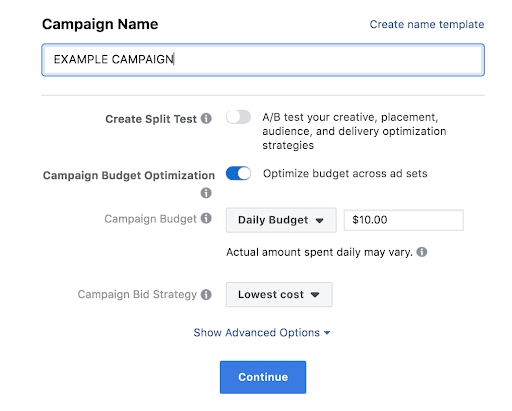
For
your first campaign, you should only worry about the budget and bid strategy.
Budget
You
can set a daily budget, which is the maximum you would like to spend on the ad
set in one day, or a lifetime budget, which is how much you would like to spend
during the scheduled time your campaign will run.
Bid
Strategy
Your
bid strategy options include:
·
Lowest Cost – “Get the
most results for your budget”
·
Cost Cap – “Control your
costs while getting the most volume of results for your budget”
·
Bid Cap – “Control your
bid in each auction”
·
Target Cost – “Get a
consistent cost per result”
Not every objective includes all 4 types of bid
strategies. See the explanation below from the Ads Manager UI:
·
The lowest cost bid
strategy is only available if all ad sets are using the same delivery
optimization.
·
Target cost and lowest
cost with bid cap are only available if none of the ad sets are using value
optimization.
·
Target cost is only
available if the ad sets are using conversion and/or app install optimization.
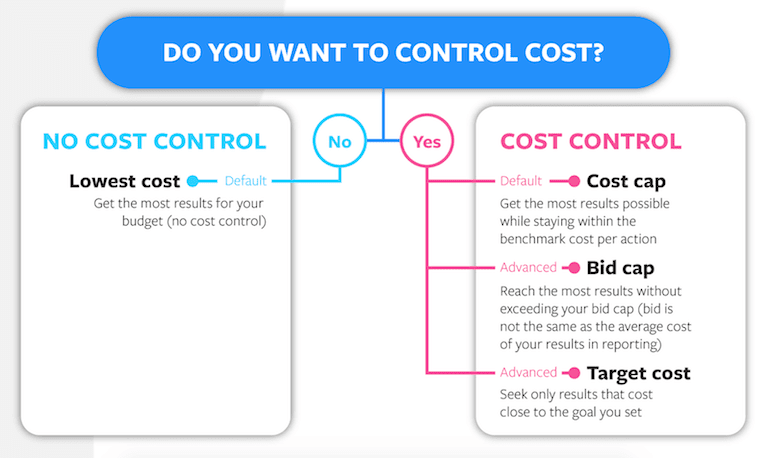
Having
trouble determining which bid strategy is the best fit? Check out this handy
chart from Facebook:
Ad
Sets
After
choosing a campaign objective, Facebook prompts you to create an ad set. It’s
helpful to think of ad sets as the Facebook version of Google’s ad groups. Ad
sets allow you to separate your campaigns into smaller sections. This is useful
when you’re interested in targeting specific ads to different locations or
audiences. You are able to choose the targeting listed below within each ad
set.
Audience –
Either choose an existing audience in the account that you set up before
creating a new campaign, or create a new custom audience. At any point of
creating audiences, you can get an estimate of your potential reach on the
right-hand side of the page.
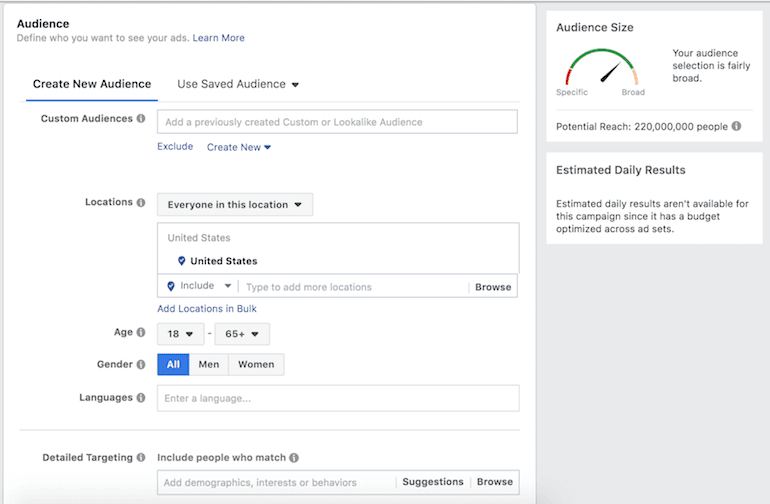
Location –
You can include and exclude multiple locations when setting up ad sets. Like in
Google Ads, there are different options for who is included in this targeting.
Below are the options for setting who is included:
·
Everyone in this
location (default setting)
·
People who live in this
location
·
People recently in this
location
·
People traveling in this
location
·
People who live in this
location
·
People recently in this
location
Age –
Since Facebook provides detailed demographics, you can optimize your campaigns
and ad sets by age. The default target is age 18 – 65+.
Languages –
You only need to specify a target language if your audience uses a language not
common in the area you choose. For example, targeting English speakers in
Germany.
Connections –
Show ads to users who like or know someone who likes your business’s Facebook
page, app, or event. You can also make advanced combinations in this section of
the ad set creation.
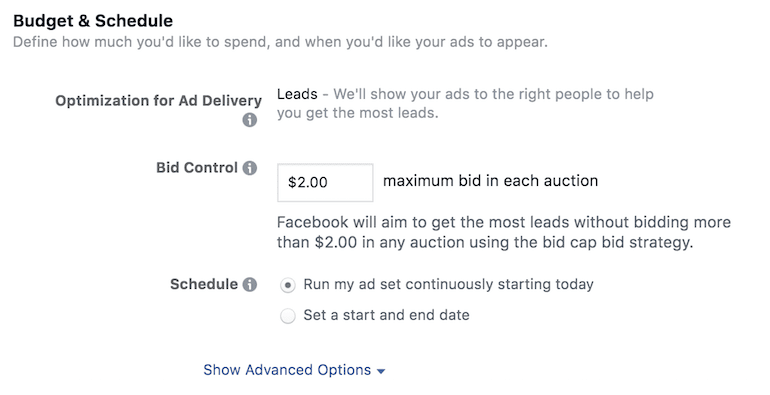
Budget
and Schedule
Budget
exists at the ad set level, too. Your setting options will vary in this
section, depending on the campaign settings you have chosen. Below is an
example of the Optimization for Ad Delivery, Bid Control, and Schedule settings
for a campaign whose objective is Lead Generation.
Ads
After
reading about the different campaign objectives, you can see that Facebook
offers opportunities to use a variety of ads or creative. You can also use an
existing post and turn it into an ad.
Image
and Video Ads – Use one image or video with these
character limits:
·
Headline: 25 characters
·
Text: 125 characters
·
Link description: 30 characters
Image
and video ads also include an optional call-to-action button. Although you
cannot customize the text in the button, Facebook provides a good variety that
should apply to most advertisers. Below is an example of a text ad where the
advertiser is using a “Shop Now” call-to-action button.

Carousel
Ads – These ad units can be especially useful for
e-commerce brands. Use 3-5 images and unique links for each image. An example
of this ad type is below. As the user clicks on the arrow, the images scroll
through.

Your
ads can show in a variety of areas on Facebook, Instagram, Messenger, and
Facebook’s Audience Network. These areas are called placements. Try testing
different placements and optimize your ad sets based on user behavior in each.
For more information on placements, see this help page.
Placements are chosen during the Ad Set creation before you create your ad.
Keep
in mind that your ads will look a little different when showing on different
placements. Below are a couple of examples of ads on the Desktop Right Column.
You can see the text and images are displayed differently than the Desktop News
Feed examples above.

Reporting
Basics
After
you launch a campaign and start showing ads, you’ll want to start optimizing
your account based on the metrics provided by Facebook. There are preset
columns you can choose based on your goals. Columns may also be customized and
saved as a default view. Below are some of the metrics most commonly used to
gauge campaign performance.
Results –
Number of actions that were taken based upon your campaign objective.
Reach –
This metric is similar to impressions in Google Ads and indicates how many
people saw your ad. Facebook also measures impressions, which includes multiple
views from the same individual.
Cost –
How much was spent per result.
Amount
Spent – Total dollars spent during the time frame
selected.
Post
Reactions and Page Likes – Even if your goals are centered
around website conversions, displaying ads on Facebook will also help increase
engagement on your business’s page and posts.
Link
Clicks – These are either clicks to the website, your
app, video, etc. These link clicks lead to destinations or experiences, on or
off Facebook.
Website
Conversions – These are all the actions tracked
by the Facebook pixel on your site and attributed to your ad. This metric can
be broken down into different actions depending on the events or custom
conversions implemented on your site.
What’s
Next?
If
you’re interested in learning more about audiences, best practices for Facebook
ads, and how to best structure your account to align with goals, see the Intermediate and Advanced Guides to
Facebook Advertising. For other pro tips check out the paid social strategy guide.
As always, be sure to check PPC Hero for Facebook updates from Hanapin
Marketing’s PPC experts.
If
you’re working on your paid social budgeting for next year, make sure to check
out the State of Paid Social 2019 to
get the latest advertiser trends for the most popular social platforms.

No comments:
Post a Comment